Free Video Editor + VFX

Professional Video Editing with HitFilm Express

Free non-linear video editor with built-in visual effects compositing. Edit multi-track timelines, add 410+ effects, and export in up to 4K resolution.

Version 2021.3
Windows 10/11
macOS
440 MB
HitFilm Express — Untitled Project
File Edit View Effects Composite Export
Effects Library
  • Color Grading
  • Particle Sim
  • Chroma Key
  • 3D Model
  • Light Flares
  • Motion Track
00:01:24:15
Timeline
0:00 — 2:30

What Is HitFilm Express?

A free video editor and VFX compositor that gives indie creators tools typically locked behind expensive subscriptions.

Free Editing Meets Visual Effects

HitFilm Express is a free video editing and visual effects application built by FXhome Ltd., a Norwich-based company founded in 2001. What set it apart from other free editors was a simple idea: combine a full non-linear editor (NLE) with a compositing environment in a single program. Most free tools force you to pick one or the other. HitFilm Express gave you both.

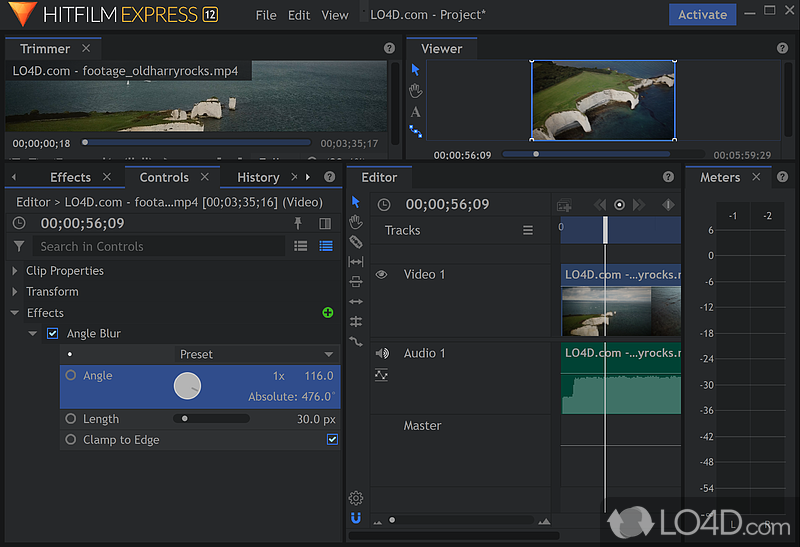
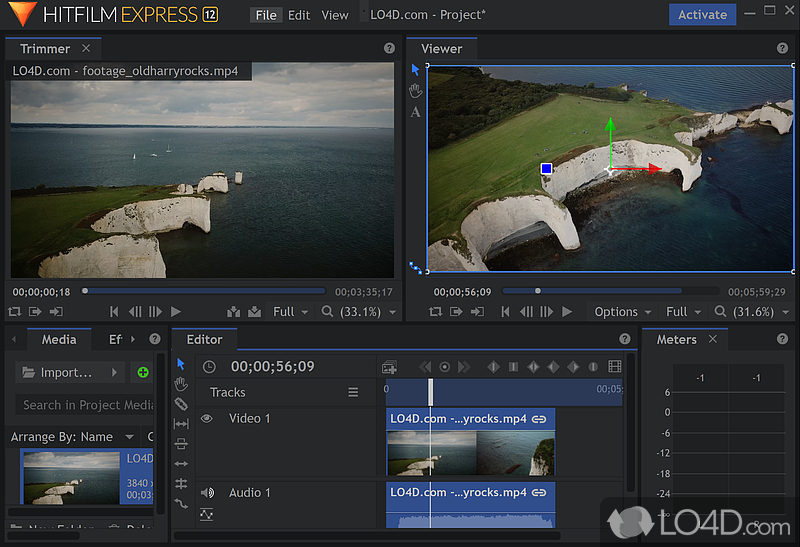
The editor itself handles multi-track timelines with standard trimming, slicing, and ripple editing. Nothing unusual there. Where things get interesting is the composite shot system, which works a lot like Adobe After Effects. You can build layered compositions with 2D and 3D elements, apply particle effects, key out green screens, import 3D models, and track motion across your footage. The software shipped with over 410 built-in effects and presets, covering everything from color grading and light flares to distortion and blur.

Who Used It

HitFilm Express found its audience primarily among YouTube creators, film students, and hobbyists who needed more than basic editing but could not justify the cost of Adobe Creative Cloud. It ran on Windows 10/11 (64-bit) and macOS 11 through 13, and could export at resolutions up to 4K. For a free tool, the output quality was genuinely competitive with paid software.

The Current Situation

FXhome was acquired by Artlist in 2021. After the acquisition, the software shifted to a subscription model and was eventually discontinued on January 15, 2025, when the FXhome website shut down for good. The last free version, HitFilm Express 2021.3 (build 18.0.1501), still works on existing installations but receives no further updates or support. Users looking for an active alternative have largely moved to DaVinci Resolve, which offers a comparable free tier with professional-grade color grading and Fusion VFX built in.

Despite being discontinued, HitFilm Express 2021.3 remains a capable editor for anyone who already has it installed or can find an archived copy of the installer.

Quick Facts

Developer FXhome Ltd.
Last Version 2021.3
License Free
File Size ~440 MB
Platforms Windows, macOS
Status Discontinued

Key Strengths

Combined NLE editing and VFX compositing in one app
410+ built-in effects including particle sims and chroma key
Export up to 4K resolution with multi-format support
3D model import, camera tracking, and light flare tools

Ready to try it? Download HitFilm Express or jump to the Getting Started guide.

What Makes HitFilm Express Stand Out

A full editing suite and VFX compositor packed into one free application. Here is what you get out of the box.

Multi-Track Timeline Editing

Work with unlimited video and audio layers on a non-linear timeline. Trim, slice, ripple edit, and rearrange clips with frame-level precision. The editor handles most common formats right away, so you can drop footage onto the timeline and start cutting without converting files first.

VFX Composite Shots

Switch from the editor into a dedicated compositing workspace (composite shots) that works like a simplified After Effects. Layer 2D and 3D elements, apply masks, keyframe animations, and build complex visual effects without leaving the application.

410+ Built-In Effects

The effects library ships with over 410 presets and filters. Color correction, blurs, distortions, glows, and stylized looks are all included. Drag any effect onto a clip or composite layer and tweak parameters in real time through the controls panel.

Particle Simulator

Generate fire, smoke, rain, sparks, and custom particle systems directly inside the compositor. The particle engine supports physics-based motion, so particles respond to gravity, turbulence, and deflectors. Useful for adding atmosphere or sci-fi effects to your footage.

Green Screen & Chroma Key

Pull clean keys from green or blue screen footage using the built-in chroma key tools. Edge refinement controls let you fix color spill and feather edges so subjects blend naturally into replacement backgrounds.

Color Grading & Correction

Shape the look of your project with color wheels, curves, and LUT support. Apply grades per-clip on the timeline or across an entire composite shot. The histogram and waveform scopes help you match shots and keep levels broadcast-safe.

3D Model Import

Bring OBJ and 3DS model files into your composite shots. Position, rotate, and light 3D objects alongside your 2D footage. This opens up possibilities for product mockups, sci-fi props, or title sequences that would otherwise require separate 3D software.

Motion Tracking

Track a point in your footage and attach text, effects, or other layers to follow that movement. Single-point tracking handles basic follow shots, and you can use the data to stabilize shaky handheld clips as well.

4K Export & Format Support

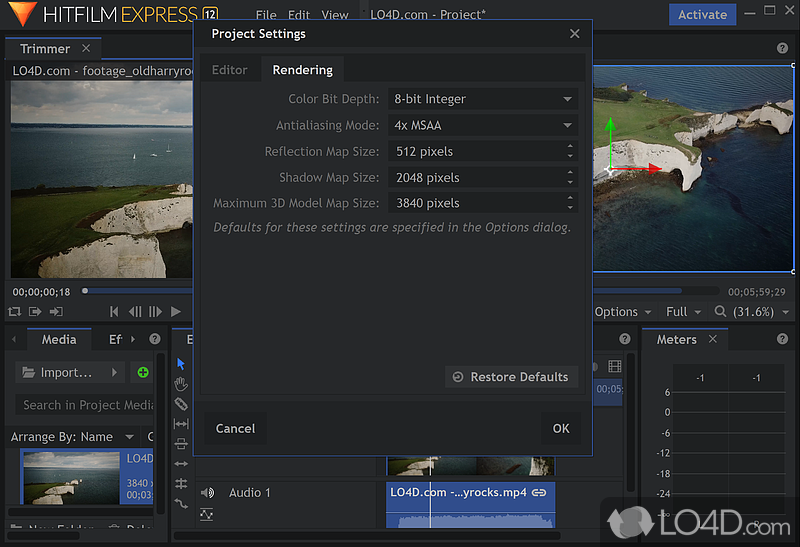
Export finished projects in resolutions up to 4K (3840×2160). HitFilm Express reads most video containers and codecs on import, including MP4, MOV, AVI, and image sequences. Output options cover H.264, AVI, and image sequence formats for YouTube uploads, client deliveries, or further post-production work.

Light Flares & Lens Effects

Add cinematic light flares, bokeh, and lens artifacts to your shots. The flare editor gives you control over individual elements like streaks, glow intensity, and chromatic aberration so each flare matches your scene rather than looking pasted on.

Text & Titling Tools

Create titles, lower thirds, and text overlays with the built-in text editor. Adjust font, size, color, and alignment, then animate properties like position, scale, and opacity through keyframes for scroll effects or dynamic intros.

Audio Mixing & Effects

Mix multiple audio tracks with per-layer volume and panning controls. Apply built-in audio effects like noise reduction, EQ, and compression directly on the timeline. The audio meters give you visual feedback while balancing levels between dialogue, music, and sound effects.

All 12 features above are included in the free version of HitFilm Express — no subscription, no watermark.

System Requirements

Check that your hardware meets these specs before installing HitFilm Express. Video editing and VFX compositing put serious demand on your system, especially at higher resolutions.

Windows 10/11
macOS 11-13
Component Minimum Recommended
Operating System Windows 10/11 (64-bit) or macOS 11 Big Sur through macOS 13 Ventura Same — 64-bit required on all platforms
Processor Intel Core i5 (6th gen) or AMD Ryzen 5 Intel Core i7/i9 (10th gen+) or AMD Ryzen 7 and above
RAM 8 GB 16 GB (32 GB for 4K editing projects)
Graphics Card NVIDIA GeForce GTX 1050 / AMD Radeon RX 400 / Intel HD 620 NVIDIA GTX 1660 or higher / AMD RX 500 series or higher
Video Memory 2 GB VRAM 4 GB+ VRAM (8 GB for 4K compositing)
Storage 1.2 GB free disk space for installation SSD with extra room for media cache and project files
Display 1280 x 768 resolution 1920 x 1080 or higher

HitFilm Express relies heavily on GPU acceleration for effects rendering. A dedicated graphics card makes a real difference with particle simulations, color grading, and 3D compositing. Integrated graphics will work for basic edits, but expect slower performance with complex VFX timelines. DaVinci Resolve and Shotcut have similar hardware needs if you are comparing alternatives.

Download HitFilm Express

Get the last free version of HitFilm Express (2021.3) with full editing and VFX compositing tools. Windows and macOS installers are available below.

Version 2021.3 (Build 18.0.12407)

HitFilm Express for Windows

Windows 10/11 (64-bit) · MSI Installer · 440 MB

Download HitFilm ExpressWindows MSI · 440 MB · Free

File: HitFilmExpress_2021.3_(18.0.12407.12817).msi

Windows

64-bit MSI installer
Windows 10 or 11 required
440 MB download

Download MSI

macOS

macOS 11 Big Sur through 13 Ventura
Intel Macs only
~486 MB download

Visit Download Page
Virus-Free Verified
Official FXhome Installer
Safe Download
No Bundled Software

HitFilm Express was discontinued by FXhome/Artlist in January 2025. Version 2021.3 is the last free release. Existing installs continue to work, but no new updates or support are available. The Windows MSI link above points to FXhome’s original installer CDN. For macOS, the direct installer requires an FXhome account that is no longer active, so we link to FileHippo as an alternative source. Consider DaVinci Resolve if you need an actively maintained free editor.
Getting Started with HitFilm Express

From download to your first edit in under 30 minutes. This walkthrough covers everything you need to start editing video and creating visual effects with HitFilm Express.

Downloading HitFilm Express

Head to our download section above to grab the HitFilm Express 2021.3 installer. This is the last free version released before FXhome shut down in January 2025, and it remains fully functional for video editing and VFX work.

The Windows installer comes as an MSI file weighing about 440 MB (HitFilmExpress_2021.3.msi). On macOS, you will download a .pkg installer at roughly 486 MB. Both are 64-bit only — there is no 32-bit build. If your internet connection runs at 50 Mbps, expect the download to finish in around two minutes.

Since FXhome no longer hosts the software directly, the installer is available through archived mirrors. Stick with the 2021.3 build — it was the final Express release and includes all the free features without any subscription requirements that later versions introduced.

The MSI installer is the standard Windows format. Double-clicking it launches the setup wizard automatically. On macOS, the .pkg file works the same way — double-click and follow the prompts.

Installation Walkthrough

HitFilm Express uses a straightforward MSI installer on Windows. The entire process takes about five minutes depending on your hardware. Here is what each step looks like:

1

Run the Installer

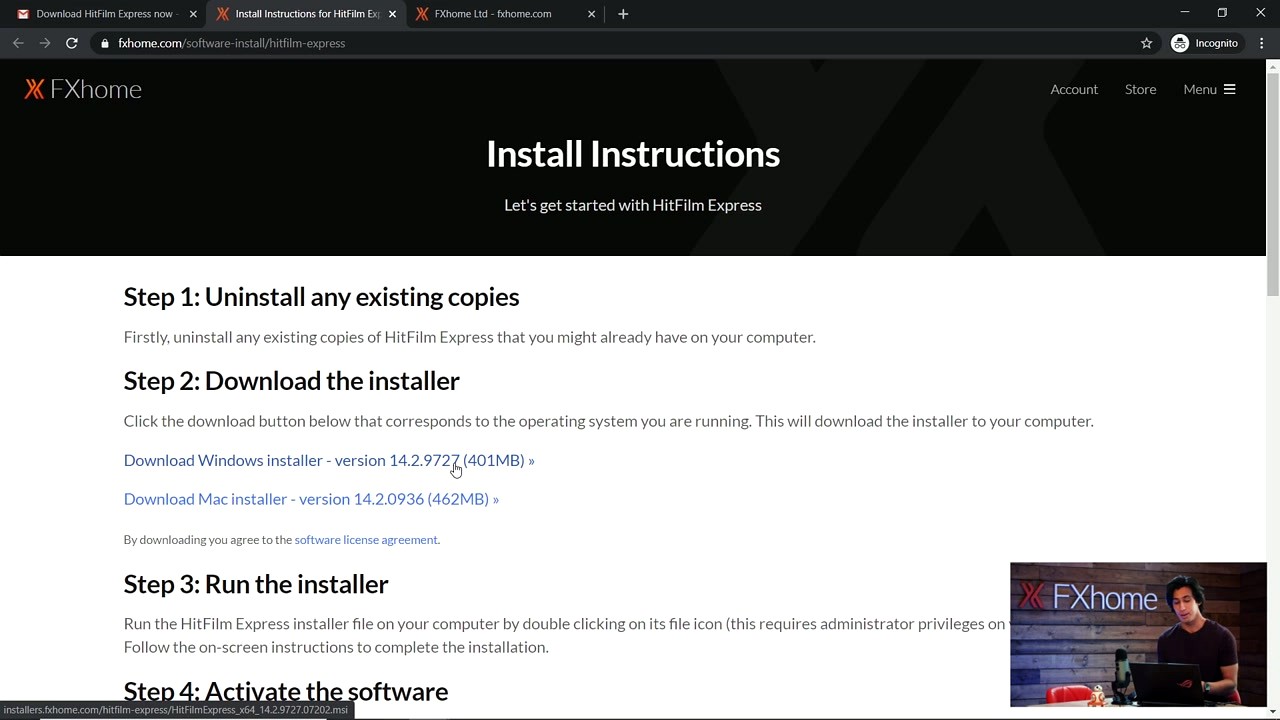
HitFilm Express step 1 - FXhome install instructions page

Double-click the downloaded MSI file. If Windows SmartScreen pops up with a warning saying “Windows protected your PC,” click More info and then Run anyway. The installer is safe — the warning appears because the file is unsigned since FXhome closed. You will need administrator privileges to continue.

2

Accept the License Agreement

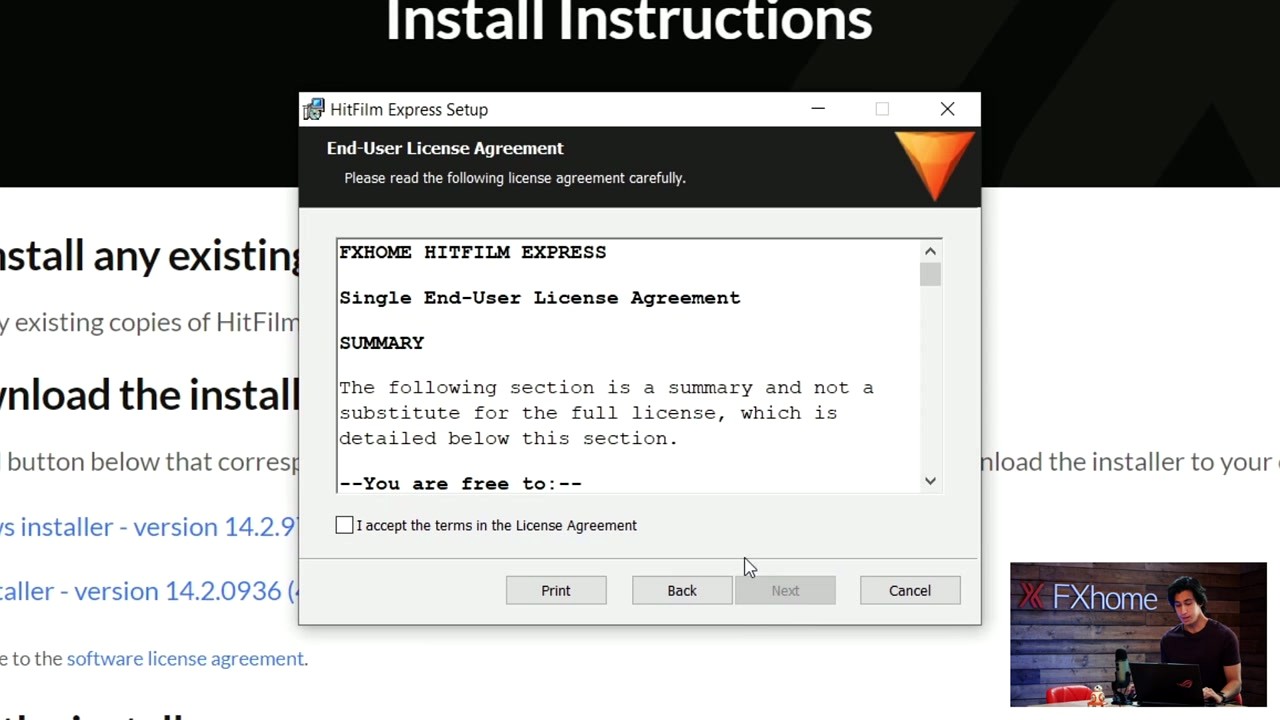
HitFilm Express step 2 - End-User License Agreement screen

The setup wizard opens with the FXhome End-User License Agreement. Scroll through to review it, then check the box labeled “I accept the terms in the License Agreement” and click Next. Without checking that box, the Next button stays grayed out.

3

Choose Install Type and Wait

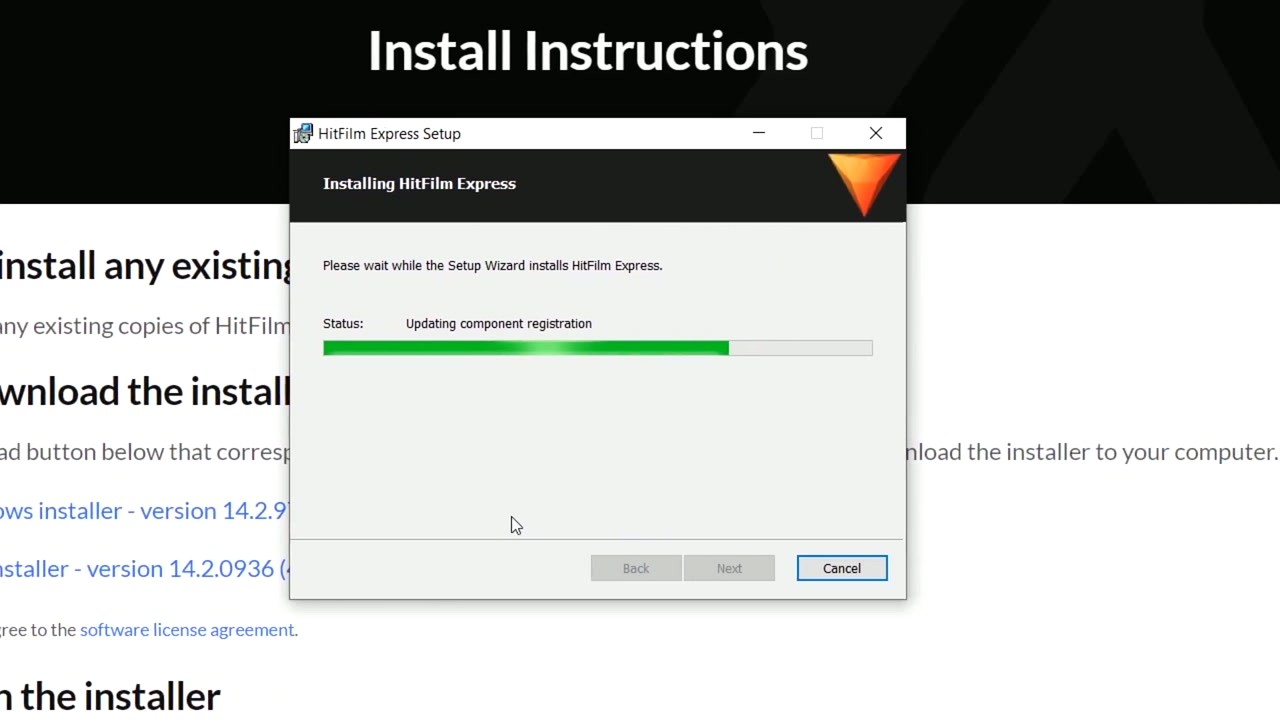
HitFilm Express step 3 - Installation progress with component registration

Select Typical installation (recommended for most users). The installer creates a folder at C:Program FilesFXhomeHitFilm Express and needs about 1.2 GB of disk space. A progress bar shows the current status — it installs Visual C++ Redistributable packages, registers components, and copies the application files. Click Finish when complete.

macOS users: Open the .pkg file, agree to the license, choose your install location (the default Applications folder works fine), and enter your admin password when prompted. The process is similar but wrapped in the macOS installer interface.

Silent install for IT admins: You can install HitFilm Express without any user interface using the command line. This is useful for deploying across multiple machines.

MsiExec.exe /i HitFilmExpress_2021.3.msi /qn

Initial Setup & Configuration

When HitFilm Express launches for the first time, it walks you through account activation and basic project settings. Here is what to expect at each screen:

4

Create Your FXhome Account

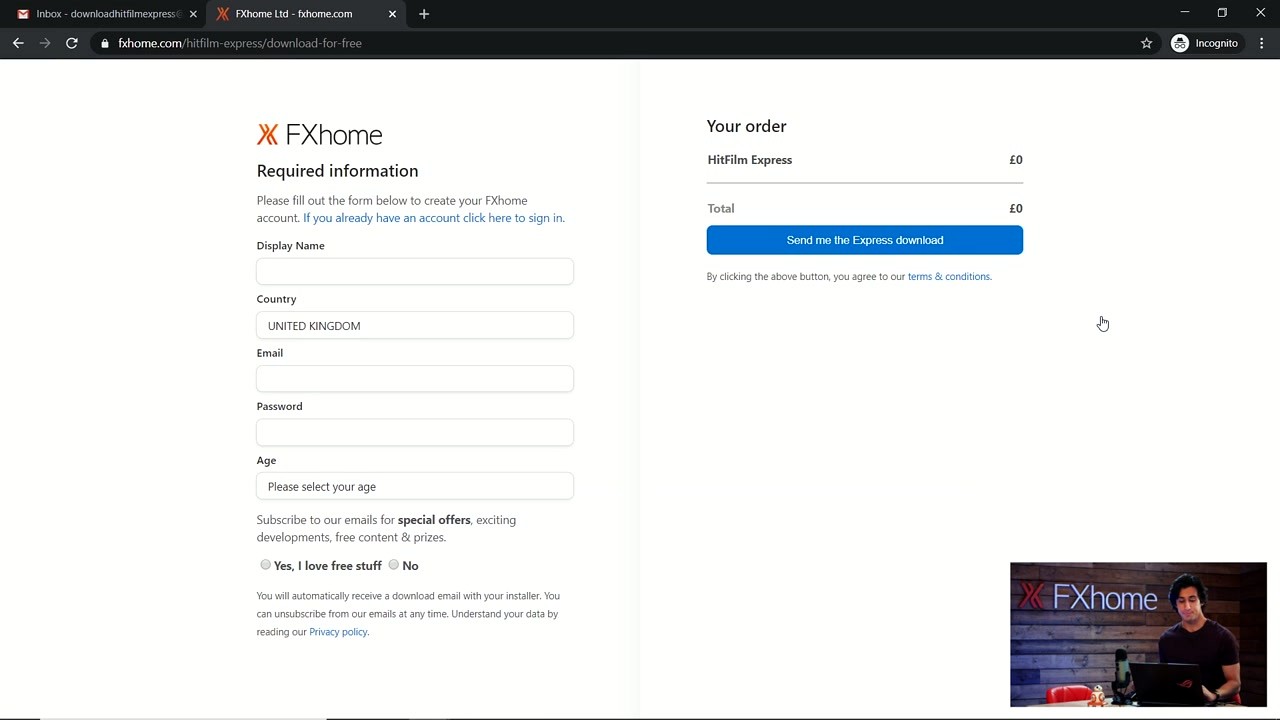
HitFilm Express step 4 - FXhome account registration form

HitFilm Express originally required a free FXhome account for activation. The registration form asked for a display name, country, email, password, and age range. Since FXhome shut down in January 2025, new account creation no longer works. However, existing installs that were already activated continue to function normally. If you have a fresh install, the software may still run in a limited mode or you can look into community-provided activation methods on Reddit (r/Hitfilm).

5

Activate and Sign In

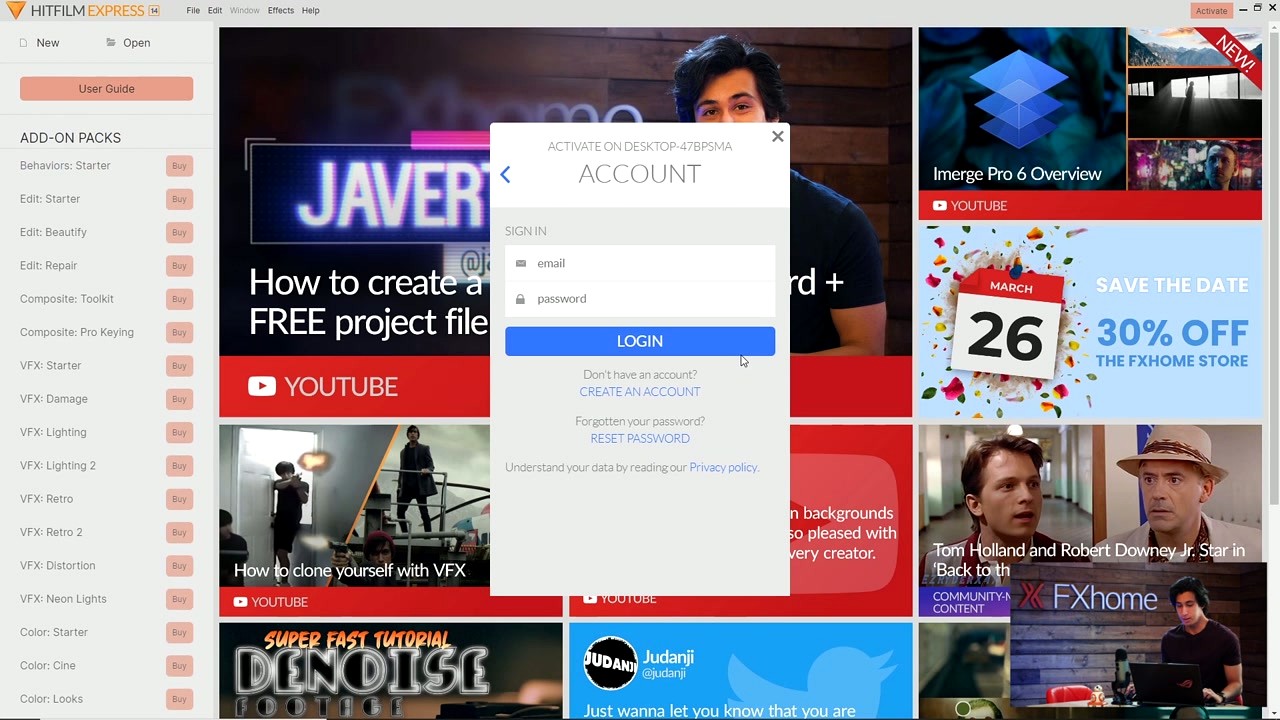
HitFilm Express step 5 - Activation login dialog inside the application

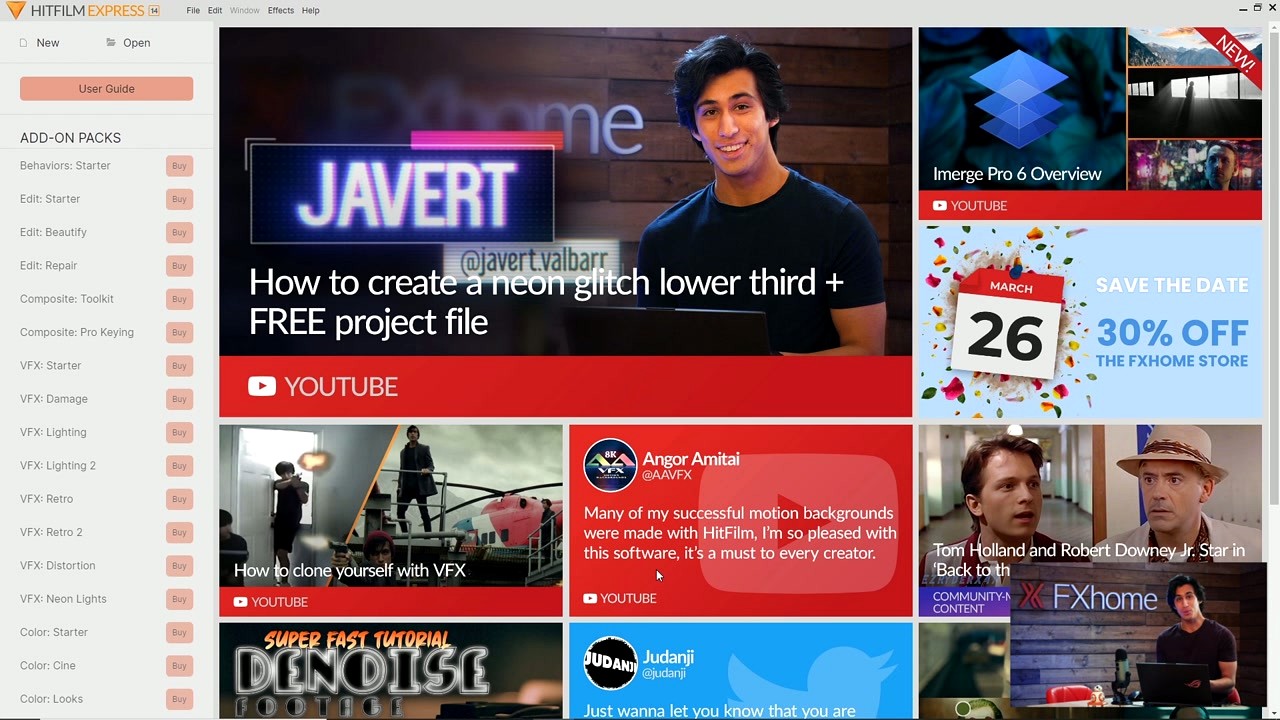
After launching HitFilm Express, an Activate button appears in the top-right corner. Clicking it opens a login dialog. Enter your FXhome email and password, then click LOGIN. The left sidebar shows available add-on packs (Behaviors, Edit, Composite, VFX, Color) with “Buy” buttons — these are optional extras and are not needed for the core editing experience. Once logged in, the full feature set unlocks.

6

Configure Project Defaults

HitFilm Express step 6 - Home screen with tutorials and add-on packs

The home screen shows tutorial videos, community content, and your recent projects. Before starting your first edit, go to File > Options (or HitFilm Express > Preferences on macOS) and adjust these settings:

  • Cache Location: Set to a fast SSD drive with plenty of free space (at least 20 GB). Navigate to Options > Cache and choose a folder on your fastest drive.
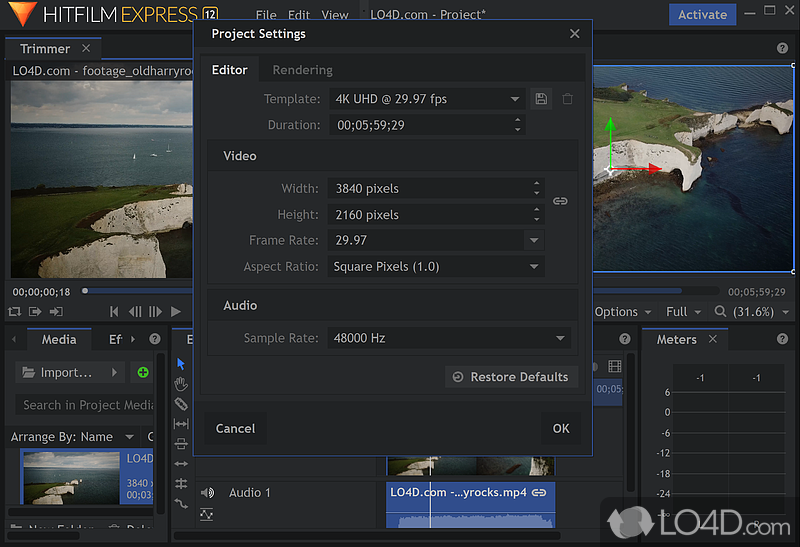
  • Default Project Settings: Under Options > Project, set resolution to 1920×1080 at 30fps for YouTube content, or match your camera’s native frame rate.
  • Auto-save Interval: In Options > General, set auto-save to every 5 minutes. This prevents lost work if the application crashes.
  • GPU Rendering: Confirm your graphics card is detected under Options > Render. HitFilm performs much better with GPU acceleration enabled.

If you previously used Adobe Premiere Pro or DaVinci Resolve, HitFilm does not import project files from those editors. You will need to start fresh, but you can import the same media files (MP4, MOV, AVI, MKV) without conversion.

Your First Project

Time to build something. This walkthrough covers editing a basic video clip, adding a title, and exporting for YouTube — the workflow most new users will follow repeatedly.

7

Create a New Project and Import Media

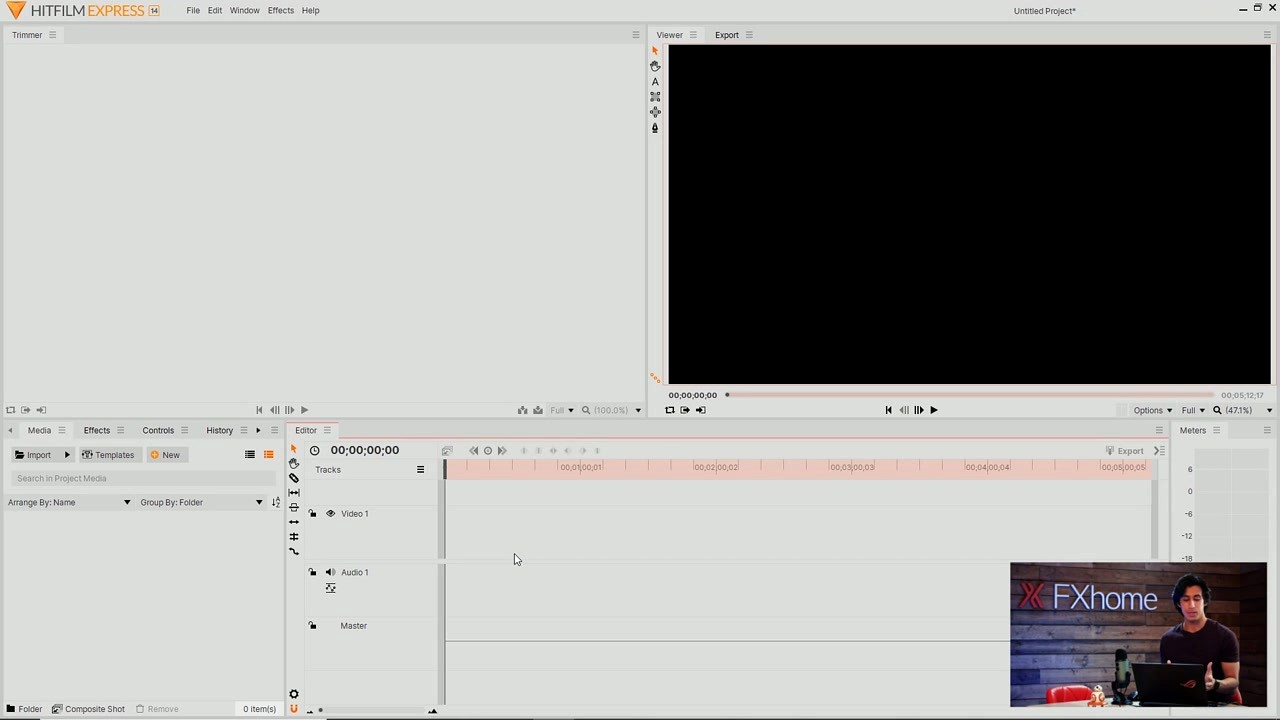
HitFilm Express step 7 - Editor interface with empty timeline and panels

Click New on the home screen. A dialog asks for project settings — pick 1080p Full HD @ 30fps for most YouTube videos. The editor opens with four main areas: the Media panel (top-left) for your files, the Trimmer (center) for previewing clips before adding them, the Viewer (top-right) for watching your edit, and the Editor timeline (bottom) where you arrange everything. Click Import in the Media panel or drag files directly from Windows Explorer into that panel.

8

Arrange Clips on the Timeline

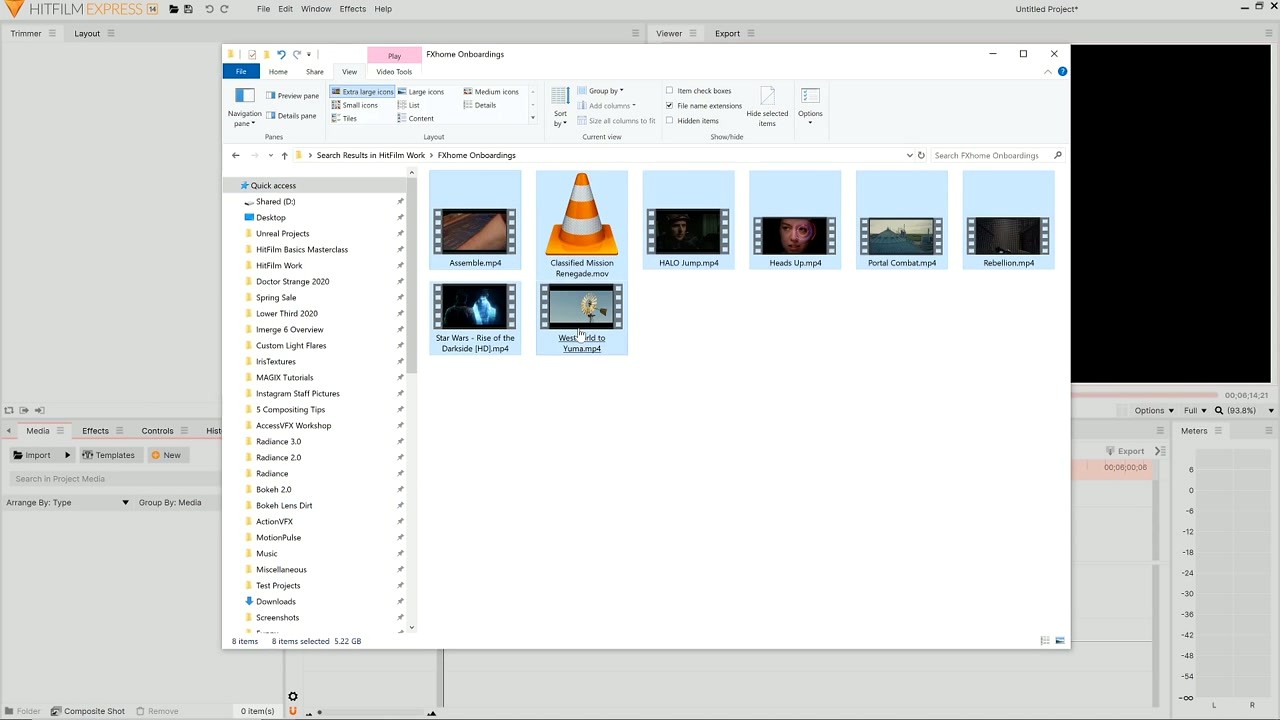
HitFilm Express step 8 - Media browser showing imported video files

Drag your video files from the Media panel onto the Video 1 track in the timeline. To trim a clip, position your cursor at the clip’s edge until it turns into a bracket icon, then drag inward. Use the Slice tool (press C on your keyboard) to cut a clip at the playhead position. Delete unwanted sections by selecting them and pressing Delete. To add transitions between clips, go to the Effects panel, expand Transitions, and drag a transition (like Cross Dissolve) between two clips on the timeline.

9

Add Effects and Export

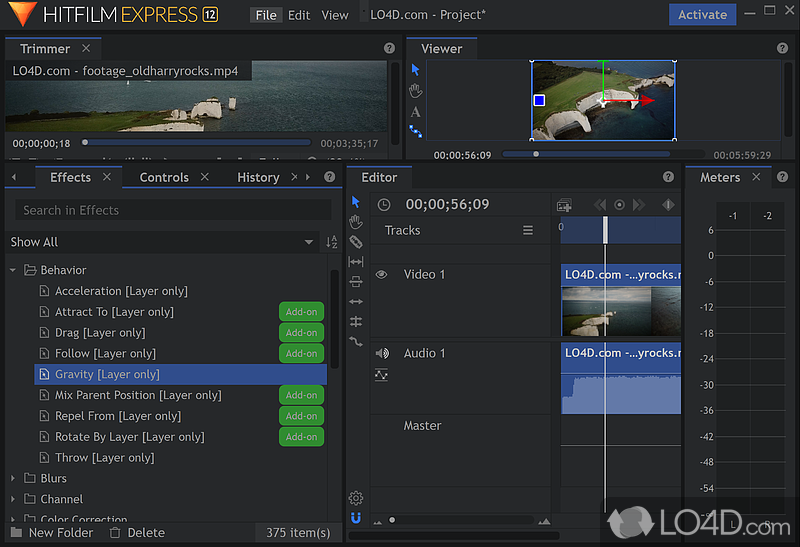
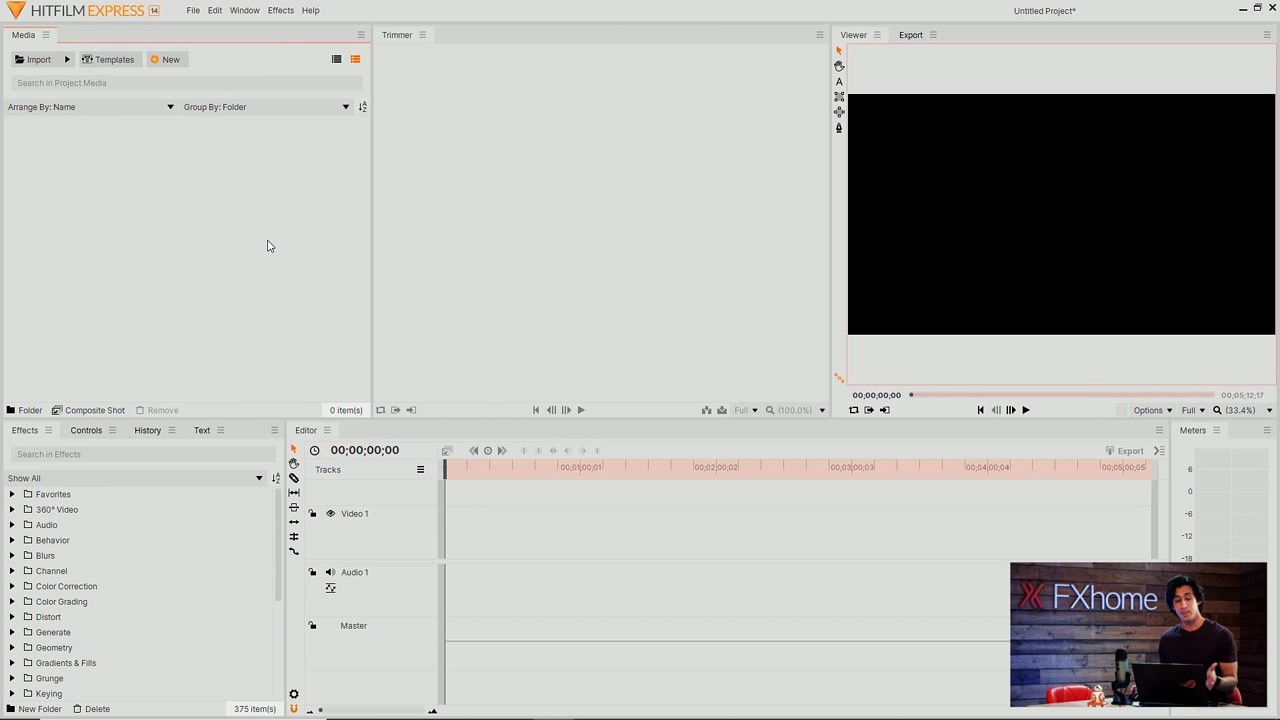
HitFilm Express step 9 - Effects panel with 375 available effects categories

The Effects panel (bottom-left) organizes 410+ effects into categories: Color Correction, Color Grading, Keying, Blurs, Generate, and more. To apply an effect, select a clip on the timeline, then drag an effect onto it. Adjust parameters in the Controls panel. For text, click the Text tool in the Viewer toolbar and type directly on the preview. When your edit is finished, click Export at the top-right. Choose YouTube 1080p HD as the preset, pick an output folder, and click Start Exporting.

Essential Keyboard Shortcuts

Action Windows macOS
Play / PauseSpaceSpace
Slice at playheadCC
Select toolVV
UndoCtrl+ZCmd+Z
RedoCtrl+YCmd+Shift+Z
Delete selectedDeleteDelete
Ripple deleteShift+DeleteShift+Delete
Save projectCtrl+SCmd+S
Import mediaCtrl+ICmd+I
Zoom timeline inCtrl++Cmd++
Zoom timeline outCtrl+-Cmd+-

Tips, Tricks & Best Practices

Performance tuning: If playback stutters, lower the Viewer resolution to Half or Quarter using the dropdown at the bottom of the Viewer panel. This affects preview quality only — your final export still renders at full resolution. Also close other applications while editing, since HitFilm Express uses significant RAM (8 GB minimum, 16 GB recommended for smooth 1080p editing).

Common mistakes to avoid: New users often drop effects directly onto the timeline instead of onto a specific clip, which does nothing. Always select the clip first or drag the effect onto the clip itself. Another frequent issue: editing at a mismatched frame rate. If your camera shoots at 24fps, set your project to 24fps before importing clips. Changing it after can cause audio sync problems.

Features worth exploring: The Composite Shot editor is HitFilm’s secret weapon — it works like a simplified After Effects for layered VFX. Right-click any clip and select “Make Composite Shot” to access keyframe animation, masking, and 3D compositing. The Particle Simulator generates fire, smoke, rain, and sparks. And the Chroma Key effect handles green screen removal with quality that rivals paid tools like DaVinci Resolve or Adobe After Effects.

No more updates: HitFilm Express 2021.3 is the final version. No bug fixes or new features will be released. If you run into crashes, make sure your GPU drivers are up to date and that your system meets the minimum requirements (NVIDIA GTX 1050 / AMD RX 400 or better).

Community Resources

For auto-updates, note that HitFilm Express no longer checks for updates since FXhome servers are offline. What you download now is what you keep. Save your installer file in case you need to reinstall later — archived copies may become harder to find over time.

Frequently Asked Questions

Answers to common questions about downloading, installing, and using HitFilm Express video editing software.

Safety & Trust
Is HitFilm Express safe to download?

Yes, HitFilm Express is safe when you download it from a reputable source. The original installer (HitFilmExpress_2021.3.msi, roughly 440 MB for Windows) was developed by FXhome Ltd., a UK-based company founded in 2001 that maintained the software for over a decade. The MSI installer package passes scans on VirusTotal with zero detections from major antivirus engines including Norton, Kaspersky, Bitdefender, and Windows Defender.

Since FXhome shut down its website on January 15, 2025, the official download page no longer exists. That makes choosing your download source more important than before. Stick to well-known software archive sites like FileHippo, Softonic, or lo4d that host verified copies of the 2021.3 installer. Avoid random blogs or file-sharing sites that may bundle adware with the installer.

  • Always verify the file size is approximately 440 MB (Windows) or 486 MB (macOS) — anything much smaller is likely fake
  • Run a scan with your antivirus software before executing the installer
  • Check the digital signature: right-click the MSI file, go to Properties > Digital Signatures, and confirm it reads “FXhome Limited”
  • If Windows SmartScreen blocks the installer, click “More info” then “Run anyway” — this happens because the certificate is no longer renewed

Pro tip: You can verify the SHA-256 hash of the downloaded file against known checksums posted in the r/Hitfilm subreddit community wiki to confirm the file has not been tampered with.

For trusted download links, visit our Download section.

Where can I find the official safe download for HitFilm Express?

The original FXhome.com download page went offline permanently on January 15, 2025 when Artlist (the Israeli media company that acquired FXhome in 2021) shut down the entire FXhome operation. New registrations, downloads, and license activations are no longer available through the official channels.

The last version available for download is HitFilm Express 2021.3 (build 18.0.1501). You can still find verified copies of this installer on established software distribution sites. FileHippo hosts the Windows installer at their HitFilm Express archive page. Softonic and lo4d also carry verified copies. These mirror sites archived the installer before the shutdown, so the files are identical to what FXhome originally distributed.

  1. Visit a trusted mirror like FileHippo, Softonic, or lo4d
  2. Select the HitFilm Express 2021.3 version specifically — older versions may have unpatched bugs
  3. Download the .msi installer for Windows or the .dmg for macOS
  4. Verify the file size matches the expected 440 MB (Windows) or 486 MB (macOS)

Pro tip: Bookmark the download source you use. Since no new versions will be released, you may need to reinstall after a Windows update or hardware change, and having a known-good source saves time.

We host verified download links on our Download page that point directly to trusted sources.

Is HitFilm Express free from malware and spyware?

The genuine HitFilm Express 2021.3 installer from FXhome contains no malware, spyware, or adware. FXhome was a legitimate software company based in Norwich, UK, with over 6 million registered users at its peak. The installer does not bundle toolbars, browser extensions, or third-party software of any kind.

However, the risk increases now that the official site is gone. Malicious actors sometimes upload repackaged versions of discontinued software with bundled crypto miners or trojans. The Windows installer should be an MSI file named HitFilmExpress_2021.3.msi and weigh approximately 439.9 MB. The macOS package should be roughly 486 MB. Any significant deviation from these sizes is a red flag.

  • The legitimate installer carries a valid digital signature from “FXhome Limited” — check Properties > Digital Signatures on Windows
  • HitFilm Express does phone home for license verification on first launch, but this service may no longer respond since the shutdown
  • The software itself collects basic anonymous usage telemetry, which you can disable in Options > Privacy
  • No cryptocurrency miners, no keyloggers, no data harvesting in the genuine build

Pro tip: Upload the installer to VirusTotal.com before running it. A clean file will show 0/70+ detections. If even one major engine flags it, the file has been tampered with.

See our System Requirements section for the hardware you will need to run HitFilm Express properly.

Compatibility & System Requirements
Does HitFilm Express work on Windows 11?

Yes, HitFilm Express 2021.3 runs on Windows 11 without issues. FXhome officially supported 64-bit Windows 10 and Windows 11 for the Express version. Most users on the r/Hitfilm subreddit report that the software works fine on Windows 11 22H2 and 23H2 builds.

The minimum hardware requirements for a usable experience on Windows 11 are an Intel Core i5 (6th generation or newer) or AMD Ryzen 5 processor, 8 GB of RAM, and a dedicated GPU with at least 2 GB of VRAM such as an NVIDIA GTX 1050 or AMD RX 400 series. For 4K editing, you will want 16-32 GB of RAM and a GTX 1660 or better with 4-8 GB of VRAM. An SSD is strongly recommended for media cache performance.

  • Make sure your GPU drivers are up to date — outdated drivers are the number one cause of crashes on Windows 11
  • The installer is a standard MSI package that works with the Windows 11 installer service without modifications
  • Windows 11 ARM (Surface Pro X, Snapdragon laptops) is not officially supported and may have GPU compatibility issues
  • If Windows SmartScreen blocks the installer, this is because the signing certificate is expired — click “More info” then “Run anyway”

Pro tip: After installing on Windows 11, go to Options > GPU & Cache and confirm that HitFilm detects your GPU correctly. If it falls back to “Software” rendering, update your drivers from the NVIDIA or AMD website directly — not through Windows Update, which often ships older versions.

Check our System Requirements for the full hardware specifications.

What are the minimum system requirements for HitFilm Express?

HitFilm Express 2021.3 requires a 64-bit operating system, a modern multi-core CPU, dedicated graphics, and at least 8 GB of RAM. It will not run on 32-bit systems or Chromebooks.

The official minimum requirements published by FXhome are: Windows 10 or 11 (64-bit) or macOS 11 Big Sur through macOS 13 Ventura; Intel Core i5 6th gen or AMD Ryzen 5 CPU; 8 GB RAM; NVIDIA GTX 1050, AMD Radeon RX 400, or Intel HD Graphics 620 with 2 GB VRAM; 1.2 GB of free disk space for installation; and a display resolution of at least 1280×768 pixels. For comfortable 1080p editing with effects, FXhome recommended 16 GB RAM, an Intel i7 or Ryzen 7 processor, and a GTX 1660 or RX 500 series GPU with 4 GB VRAM or more.

  • CPU: Minimum Intel i5 6th gen / AMD Ryzen 5. Recommended: i7/i9 10th gen or Ryzen 7 and above
  • RAM: 8 GB minimum. 16 GB for 1080p effects work, 32 GB for 4K projects
  • GPU: NVIDIA GTX 1050 / AMD RX 400 / Intel HD 620 minimum. GTX 1660+ or RX 500+ recommended
  • Storage: 1.2 GB for install, plus SSD recommended for media cache and project files
  • No Linux support — HitFilm Express was never released for Linux

Pro tip: If you are running on integrated Intel graphics (HD 620 or UHD 630), keep your timeline preview resolution at Half and avoid stacking more than 2-3 effects layers. Integrated GPUs can handle basic editing, but compositing work will stutter badly.

See the full breakdown in our System Requirements section.

Does HitFilm Express support 32-bit operating systems?

No, HitFilm Express does not support 32-bit operating systems. Every version since HitFilm Express 2017 has required a 64-bit OS. The installer will refuse to run on a 32-bit Windows installation and display an error message about system incompatibility.

This is a hard technical limitation, not just a preference. Video editing and VFX compositing require large amounts of RAM. A 32-bit operating system can only address about 3.5 GB of memory, which is not enough to load the application itself plus media assets. HitFilm Express needs at least 8 GB of RAM as a minimum, which is only accessible on 64-bit systems. The same applies to macOS — only 64-bit Intel Macs and Apple Silicon Macs running macOS 11 Big Sur or later are supported.

  • To check your system type on Windows: Settings > System > About > look for “64-bit operating system”
  • If you are on a 32-bit Windows, you can upgrade to 64-bit for free if your CPU supports it (most CPUs from 2008 onward do)
  • Chromebooks, tablets running Windows 10 S mode, and Windows RT devices are also unsupported

Pro tip: If you are stuck on older hardware that cannot run 64-bit Windows, consider Shotcut or Kdenlive instead. Both are open-source video editors with 32-bit builds available, though they lack HitFilm’s compositing features.

Review the full hardware requirements on our System Requirements page.

Pricing & Licensing
Is HitFilm Express completely free to download and use?

Yes, HitFilm Express was always free to download and use with no time limits, no export restrictions, and no watermarks on your final video. FXhome released Express as a genuinely free product funded by optional paid add-on packs and their premium HitFilm Pro tier.

The free Express version included the full non-linear editor with multi-track timeline, the complete compositing environment for VFX work, over 410 built-in effects and presets, export up to 4K resolution, and support for most video formats. Paid add-on packs (typically $9-$39 each) unlocked extras like advanced color wheels, film grain generators, and specific VFX presets — but the core editing and compositing tools were completely free.

  • No trial period. The free version never expired.
  • No watermark on exported video — but you had to register a free FXhome account and log in to the software. Without logging in, a watermark and audio tone were added to exports.
  • No resolution cap — 4K export was available in the free version since HitFilm Express 2021.1
  • The FXhome account registration service is now offline (since January 2025), so new users may encounter watermark issues if the software cannot verify a login

Pro tip: Some copies of HitFilm Express 2021.3 floating around online have been pre-activated or patched to skip the login check. While we cannot endorse this, the software is technically abandonware now that FXhome has ceased operations entirely.

Grab the installer from our Download section to get started.

What is the difference between HitFilm Express and HitFilm Pro?

HitFilm Express was the free version with core editing and compositing tools. HitFilm Pro was the paid version ($349/year or subscription) with additional professional features. Neither is available for new purchase since FXhome closed in January 2025.

Express included everything most YouTubers and hobbyist filmmakers needed: multi-track NLE editing, composite shot environment, 410+ effects, particle simulator, chroma keying, 3D model import, and 4K export. Pro added motion tracking with unlimited points, advanced color grading with LUT support, Boris FX integration, 3D camera solve, planar tracking, additional particle effects, and priority render performance. Pro also included all add-on packs that Express users had to buy separately.

  • Express (Free): Multi-track editing, compositing, 410+ effects, chroma key, particle sim, 4K export
  • Pro ($349/year): Everything in Express plus mocha HitFilm planar tracking, Foundry camera solver, Boris FX plugins, unlimited motion tracking, advanced color tools, priority rendering
  • After Artlist acquired FXhome in 2021, both products were merged into a single “HitFilm” product with a subscription model before being discontinued entirely

Pro tip: If you need the advanced features that were in Pro (especially motion tracking and planar tracking), DaVinci Resolve offers similar capabilities in its free version through the Fusion page. It is the closest free replacement for the full HitFilm Pro feature set.

Learn about the features still available in Express on our Features page.

Installation & Setup
How do I download and install HitFilm Express step by step?

Download the HitFilm Express 2021.3 installer from a trusted source, run the MSI file, and follow the setup wizard. The entire process takes about 5-10 minutes on a modern system with a decent internet connection.

The Windows installer is a standard MSI package (HitFilmExpress_2021.3.msi, 439.9 MB). On macOS, you will download a DMG file of approximately 486 MB. There is no Linux version. The installer does not require an internet connection during installation itself, but the software previously needed an online login to remove the export watermark — this may no longer work since FXhome’s servers are offline.

  1. Download the installer from our Download section or a trusted mirror like FileHippo
  2. Double-click the MSI file. If Windows SmartScreen appears, click “More info” then “Run anyway”
  3. Accept the license agreement and choose your install location (default is C:Program FilesFXhomeHitFilm Express)
  4. The installer needs about 1.2 GB of disk space. Click Install and wait for extraction to finish
  5. Launch HitFilm Express from the Start Menu or desktop shortcut
  6. On first launch, the software will attempt to verify your hardware. Confirm your GPU is detected under Options > GPU & Cache

Pro tip: Install HitFilm on an SSD rather than a mechanical hard drive. The application loads substantially faster on solid-state storage, and timeline preview performance improves because the media cache reads and writes are quicker.

For a detailed walkthrough, check our Getting Started guide.

How to fix HitFilm Express installation errors on Windows?

Most HitFilm Express installation errors on Windows are caused by missing Visual C++ redistributables, corrupted downloads, or permission conflicts. The fix is usually straightforward and takes a few minutes.

The most common error is a failed MSI extraction, which typically means the download was corrupted or incomplete. Re-download the installer and compare the file size to the expected 439.9 MB. Another frequent issue is the “This app can’t run on your PC” message, which appears on 32-bit Windows systems — HitFilm requires 64-bit Windows 10 or 11. Some users also encounter errors related to .NET Framework or Visual C++ 2017 runtime dependencies.

  1. Re-download the installer: A corrupted download is the most common cause. Delete the old file and download fresh from a different mirror if needed
  2. Run as Administrator: Right-click the MSI file > “Run as administrator” to avoid permission issues
  3. Install Visual C++ Redistributable: Download and install the Visual C++ 2015-2022 Redistributable (x64) from Microsoft’s website
  4. Disable antivirus temporarily: Some antivirus software (especially Avast and AVG) blocks the MSI extraction. Add an exception or disable real-time scanning during install
  5. Clean previous installs: If upgrading, uninstall the old version first through Control Panel > Programs > Uninstall, then restart before installing the new version

Pro tip: If the MSI installer keeps failing, try running it from the command line: msiexec /i HitFilmExpress_2021.3.msi /L*v install_log.txt. This creates a verbose log file that shows exactly where the installation fails, which makes troubleshooting much easier.

See our Getting Started guide for the complete installation walkthrough.

Troubleshooting & Common Issues
How to fix HitFilm Express not opening, crashing, or freezing?

If HitFilm Express crashes on launch or freezes during use, the problem is almost always related to GPU drivers, corrupted cache files, or insufficient RAM. Start with the driver update and cache clear — these two steps fix roughly 80% of reported crashes.

HitFilm Express relies heavily on GPU acceleration through OpenGL. When your graphics drivers are outdated or corrupted, the application either crashes on startup or freezes when you try to add effects to the timeline. Users on the r/Hitfilm subreddit consistently report that updating to the latest NVIDIA Game Ready or AMD Adrenalin drivers resolves most crash issues. The cache folder can also grow corrupt over time, especially after unexpected shutdowns during rendering.

  1. Update GPU drivers: Download the latest drivers directly from NVIDIA.com or AMD.com — do not rely on Windows Update drivers, which are often months behind
  2. Clear the cache: Navigate to %AppData%FXhomeHitFilm Express and delete the Cache folder. Restart the application
  3. Try a new project: If a specific project crashes but the app opens fine otherwise, the project file may be corrupted. Try importing your media into a fresh project
  4. Reduce preview quality: In the Viewer panel, change the preview resolution from Full to Half or Quarter. This reduces GPU load substantially
  5. Close background apps: Chrome alone can consume 2-4 GB of RAM. Close browser tabs and other heavy applications before launching HitFilm

Pro tip: If HitFilm crashes specifically during export/render, switch the export quality to a lower resolution as a test. Crashes during render are often caused by the GPU running out of VRAM on effects-heavy timelines. Reducing from 4K to 1080p or removing one layer of effects usually resolves it.

Check our System Requirements to confirm your hardware meets the minimum specifications.

Why is HitFilm Express running slow and how do I speed it up?

HitFilm Express runs slow primarily because of insufficient RAM, mechanical hard drives, or too many effects stacked without proxies. The application is more demanding than basic editors like iMovie or Windows Video Editor because it includes a full compositing engine alongside the editor.

With 8 GB of RAM (the minimum), you will notice slowdowns as soon as you work with more than 2-3 video tracks or add multiple effects. At 16 GB, performance is comfortable for 1080p editing with moderate effects. For 4K projects or heavy compositing, 32 GB is what FXhome recommended. A mechanical hard drive creates a massive bottleneck because HitFilm constantly reads and writes to the media cache — switching to an SSD can double your timeline preview performance.

  • Set preview to Half resolution: In the Viewer panel dropdown, switch from Full to Half. This cuts the GPU workload in half with minimal visual difference during editing
  • Use proxy editing: For large files (4K, high bitrate), create proxy clips at lower resolution. Edit with proxies, then switch back to full resolution for final export
  • Clear timeline cache regularly: Go to Options > Cache and click “Clear.” A bloated cache (10+ GB) can slow down project loading and scrubbing
  • Disable unnecessary effects during editing: Click the eye icon next to effects you are not actively tweaking. Re-enable them for the final render
  • Move your project files to an SSD: If your media is on a USB drive or network share, copy it to a local SSD before editing

Pro tip: HitFilm benefits more from GPU power than CPU power during preview playback. If you are building a system for HitFilm, invest in a better graphics card (GTX 1660 or newer) before upgrading your CPU. A fast GPU with only an i5 will outperform a fast CPU with integrated graphics.

Refer to our Features overview for the full list of effects and compositing tools available.

HitFilm Express exports black screen with audio only – how to fix?

A black screen export with audio intact is a GPU rendering failure. The audio track processes through the CPU, which completes normally, while the GPU-dependent video rendering fails silently or produces black frames. This is one of the most reported issues on the HitFilm forums and Reddit.

The root cause is almost always an incompatible GPU driver or a VRAM overflow. When the GPU runs out of memory mid-render, it cannot process the remaining video frames and outputs black instead of crashing outright. Users with NVIDIA GTX 1050 cards (2 GB VRAM) hit this wall most often when rendering effects-heavy timelines at 1080p or above.

  1. Update your GPU drivers to the absolute latest version from NVIDIA.com or AMD.com. This fixes the issue for about 60% of users
  2. Lower the export resolution: Try exporting at 720p instead of 1080p. If this works, VRAM is the bottleneck
  3. Switch codec: Change from H.265/HEVC to H.264/AVC in the export settings. H.265 encoding uses significantly more GPU memory
  4. Split the timeline: If a specific section causes the black screen, export in two or three chunks and join them afterward in a separate pass
  5. Disable GPU rendering: In Options > GPU & Cache, switch to CPU-only rendering. This will be much slower but eliminates the GPU as a failure point

Pro tip: Before a long render, close every other application and reboot your PC. A fresh boot gives HitFilm maximum access to your GPU’s VRAM without competition from Chrome, Discord, or other GPU-accelerated apps that quietly consume video memory in the background.

Make sure your system meets the recommended specifications listed in our System Requirements.

Updates & Version Management
What happened to HitFilm Express and is it discontinued?

HitFilm Express is discontinued. FXhome Ltd., the original developer, was acquired by Artlist (an Israeli stock media company) in 2021. Artlist merged Express and Pro into a single subscription-based product called “HitFilm” in 2022, then shut down the entire FXhome operation on January 15, 2025. The website, download servers, account system, and support channels are all permanently offline.

The timeline of events: FXhome released HitFilm Express as a free product in 2015 and built a community of over 6 million users over the following years. In 2021, Artlist acquired FXhome and began shifting toward subscription pricing. In mid-2022, the free Express tier was gutted — features like LUTs, wipe transitions, text tools, and stabilization were removed from the free version. By late 2024, Artlist announced the complete shutdown effective January 15, 2025.

  • Existing installations of HitFilm Express 2021.3 still work — they run entirely locally and do not require server connectivity for basic editing
  • No more updates, security patches, or bug fixes will be released
  • The account/login system that removed the export watermark is offline, which may cause watermark issues for new installations
  • Purchased add-on packs are gone — there is no way to recover them if you did not download them before the shutdown

Pro tip: If you have HitFilm Express installed and working, do not uninstall it. Keep a backup of the installer file and your %AppData%FXhome folder. Since there will be no more downloads from FXhome, your current installation is the only copy you will have.

For alternatives, see the comparison question below or browse our Features section to understand what Express still offers.

Can I still update HitFilm Express to a newer version?

No. HitFilm Express 2021.3 (build 18.0.1501) is the final version, and there will never be another update. FXhome’s update servers are offline, so the Help > Check for Updates menu option inside the application will either time out or return an error.

Before the shutdown, HitFilm Express had a built-in update checker that would notify you when a new version was available. It downloaded a new installer and prompted you to run it. That entire infrastructure was decommissioned when FXhome closed in January 2025. The last major feature addition to Express was 4K export support, which was added in version 2021.1 and refined in 2021.3.

  • The version you have installed right now is the version you will have permanently
  • Do not “update” by downloading random files claiming to be newer versions — there are none
  • If you are running an older Express version (2017, 2018, or 2019), you can still upgrade to 2021.3 by downloading and installing it fresh. The newer version replaces the old one
  • Keep your installer file backed up to an external drive or cloud storage. If you need to reinstall after a hardware change, you will need it

Pro tip: Create a system image backup after installing HitFilm Express and configuring it the way you like. If a Windows update breaks compatibility, you can restore the image rather than hunting for the installer and reconfiguring everything from scratch.

Visit our Download section for the latest (and final) version of HitFilm Express.

Alternatives & Comparisons
HitFilm Express vs DaVinci Resolve – which is better?

DaVinci Resolve is the better choice in 2025 and beyond. It is actively maintained, receives regular updates, and offers a broader professional toolset in its free version. HitFilm Express is discontinued with no future updates or support.

When both were actively developed, each had strengths. HitFilm Express was easier to learn and had a simpler, more intuitive compositing workflow with drag-and-drop effects. DaVinci Resolve has a steeper learning curve but offers industry-standard color grading (used in Hollywood productions), the Fusion compositing page with node-based VFX, Fairlight audio editing suite, and unlimited 4K export — all in the free version. Resolve runs on Windows, macOS, and Linux, while HitFilm only supported Windows and macOS.

  • Color grading: Resolve wins decisively. Its color page is the industry standard. HitFilm had basic color correction only
  • VFX/Compositing: HitFilm’s layer-based compositing was more beginner-friendly. Resolve’s Fusion is more powerful but uses a node-based workflow that takes longer to learn
  • Audio: Resolve includes Fairlight, a full digital audio workstation. HitFilm had a basic audio mixer
  • Ease of use: HitFilm was simpler for quick edits and YouTube content. Resolve requires more learning investment but pays off for longer projects
  • System requirements: Both are GPU-hungry. Resolve recommends 16 GB RAM minimum for comfortable use, same as HitFilm for effects work

Pro tip: If you are migrating from HitFilm Express, start with DaVinci Resolve’s Cut page (not the full Edit page). The Cut page workflow is closest to HitFilm’s single-timeline approach and will feel more familiar during the transition.

See what HitFilm Express still offers on our Features page before deciding.

What is the best free alternative to HitFilm Express?

DaVinci Resolve is the best free alternative for most users migrating from HitFilm Express. It is the only free editor that combines professional editing, color grading, VFX compositing, and audio mixing in one application — the same all-in-one approach that made HitFilm unique.

If DaVinci Resolve feels too complex or your hardware cannot handle it (it is demanding), there are other solid free options. Shotcut is a completely open-source cross-platform editor that handles basic editing well and runs on modest hardware. Kdenlive is another open-source option popular on Linux with a clean interface and reliable performance. For mobile creators, CapCut offers a surprising amount of editing power for free, though it is primarily designed for short-form content.

  • DaVinci Resolve (Free): Best overall replacement. Professional color, Fusion VFX, Fairlight audio. Steep learning curve. Windows/macOS/Linux
  • Shotcut: Lightweight, open-source, no account needed. Good for basic editing. No compositing. Windows/macOS/Linux
  • Kdenlive: Open-source, strong editing features, active development. No VFX layer. Best on Linux, also available on Windows/macOS
  • OpenShot: Simple, beginner-friendly, open-source. Limited effects. Can be buggy with larger projects

Pro tip: If your main use for HitFilm was green screen compositing and particle effects (not general editing), DaVinci Resolve’s Fusion page is the direct replacement. Fusion uses a node-based workflow instead of layers, but it offers the same capabilities — chroma key, particle systems, 3D compositing — all in the free version.

Compare features on our Features page to understand what you would be replacing.

Advanced Usage & Power Tips
Can HitFilm Express edit 4K video?

Yes, HitFilm Express 2021.3 can import, edit, and export 4K (3840×2160) video. This feature was added in HitFilm Express 2021.1 and was previously locked behind the paid Pro version. There is no resolution cap in the final Express release.

That said, 4K editing in HitFilm Express is demanding on hardware. You need at least 16 GB of RAM (32 GB recommended), a dedicated GPU with 4 GB or more of VRAM (NVIDIA GTX 1660 or AMD RX 580 minimum), and an SSD for your media storage. Editing 4K footage on a mechanical hard drive will result in constant dropped frames and stuttering in the preview. The codec also matters: H.264 4K files are more taxing on the CPU during decode than ProRes or DNxHR files of the same resolution.

  • Set the Viewer preview resolution to Half or Quarter while editing 4K. Switch back to Full only for final review
  • Export supports H.264 and H.265 codecs at 4K. H.265 produces smaller files but takes longer to encode
  • If playback stutters, create proxy files: File > Import > right-click your 4K clip > Create Proxy
  • Timeline performance drops significantly once you add effects to 4K clips. Pre-render composite shots before adding more layers

Pro tip: For YouTube content, edit in 1080p and upscale to 4K during export. YouTube applies a higher bitrate codec to 4K uploads, so even upscaled 1080p footage looks better at the “4K” setting than native 1080p uploads. This trick saves editing time while delivering higher perceived quality to viewers.

Check our System Requirements for the recommended 4K editing hardware.

How do I use green screen (chroma key) in HitFilm Express?

HitFilm Express includes a built-in chroma key (green screen) effect called “Color Difference Key” that works well for removing green or blue screen backgrounds. It is one of the strongest features in the free version and handles uneven lighting better than most free alternatives.

The chroma key tool in HitFilm Express uses a color-difference algorithm rather than simple hue-based keying, which means it preserves fine details like hair strands and transparent objects better. For best results, your green screen footage should be evenly lit with minimal shadows on the background. Wrinkled or unevenly lit screens produce much worse keys regardless of the software you use.

  1. Import your green screen footage and place it on the timeline
  2. Create a composite shot: right-click the clip on the timeline > “Make Composite Shot”
  3. In the composite shot, open the Effects panel (left sidebar) and search for “Color Difference Key”
  4. Drag the effect onto your video layer. The green background should disappear immediately
  5. Fine-tune: adjust the “Gamma” and “Min/Max” sliders to clean up edge fringing. Use the “Spill Removal” effect afterward to eliminate green color spill on your subject
  6. Place your replacement background on a layer below the keyed footage

Pro tip: For stubborn green screen footage with uneven lighting, stack two chroma key effects. Apply the first with standard settings to remove the bulk of the green, then add a second instance with more aggressive settings to catch the remaining fringe. This two-pass approach often produces cleaner edges than cranking a single effect too high.

Explore the full list of built-in effects on our Features page.

Does HitFilm Express support GPU acceleration?

Yes, HitFilm Express uses OpenGL-based GPU acceleration for both timeline preview rendering and final export. The GPU handles effects processing, compositing calculations, and video decode/encode acceleration, which makes it substantially faster than CPU-only rendering for effects-heavy projects.

HitFilm Express supports NVIDIA GPUs (GTX 900 series and newer via OpenGL 4.5), AMD Radeon GPUs (RX 400 series and newer), and Intel integrated graphics (HD 620 and newer, though performance on integrated GPUs is limited). The software does not use CUDA or OpenCL specifically — it relies on OpenGL for cross-vendor compatibility. NVIDIA users generally get the best performance because NVIDIA’s OpenGL drivers are more mature than AMD’s for creative applications.

  • GPU acceleration is enabled by default. Check Options > GPU & Cache to verify your GPU is detected
  • If HitFilm says “Software” rendering, your GPU driver is too old or incompatible. Update from NVIDIA.com or AMD.com
  • Particle simulations and 3D compositing benefit the most from GPU acceleration — these can be 5-10x slower on CPU-only rendering
  • Export rendering also uses the GPU. More VRAM means you can render more effects simultaneously without black frame failures

Pro tip: In the NVIDIA Control Panel, set HitFilm Express to use your dedicated GPU instead of “Auto-select.” On laptops with both integrated and discrete GPUs, Windows sometimes routes HitFilm through the weaker integrated GPU, which cripples performance. Go to NVIDIA Control Panel > Manage 3D Settings > Program Settings > add HitFilm Express > select “High-performance NVIDIA processor.”

Review GPU requirements in our System Requirements section.

How do I uninstall HitFilm Express completely?

Uninstall HitFilm Express through Windows Settings or Control Panel, then manually delete the leftover data folders. The standard uninstaller removes the application but leaves behind cache files and settings that can take up several gigabytes.

The application installs to C:Program FilesFXhomeHitFilm Express by default and creates user data in %AppData%FXhomeHitFilm Express. The media cache folder (where HitFilm stores decoded video frames for faster playback) can grow to 10-50 GB depending on how much footage you have worked with. The uninstaller removes the program files but does not touch the AppData folder or cache.

  1. Open Windows Settings > Apps > Installed Apps (or Control Panel > Programs > Uninstall)
  2. Find “HitFilm Express” in the list and click Uninstall. Follow the prompts
  3. After the uninstaller finishes, delete the remaining data: open File Explorer, type %AppData% in the address bar, and delete the “FXhome” folder
  4. Also check %LocalAppData% for any FXhome folders and delete those
  5. If you want to reclaim all disk space, search for “HitFilm” in C:Users[your name] to find any remaining cache or temp files

Pro tip: Before uninstalling, export your custom presets and effects settings. Go to File > Export > Preset Library to save your custom presets to a file. If you ever reinstall HitFilm or switch to another editor that can import HitFilm presets, you will have them backed up.

If you are uninstalling to switch editors, check our comparison questions above for the best alternatives.

Still have questions? Visit our Getting Started guide for detailed setup instructions or check the Download section to get HitFilm Express.